

Deploy ComplianceOne to manage compliance workflows, maintain regulatory records, and produce audit-ready evidence across teams.
AesirX ComplianceOne is a self-hosted Governance, Risk, and Compliance platform designed for organizations operating under Vietnam’s expanding regulatory framework, including the Personal Data Protection Law (PDPL), Data Law, and related cybersecurity and digital regulations.
Once installed, the platform provides a structured environment for managing compliance workflows, maintaining required records, and producing audit-ready documentation.
This guide shows developers and IT teams how to install ComplianceOne using the installer package and Start Wizard.
Follow the steps below to download the installer, activate your license, and configure your organization settings.
Step 1: Get License Key and Add Domain
License validation requires the domain to be registered with the license.
Therefore, you must add your domain to the license before the solution can be used on your website. This ensures the license is properly validated and activated for that domain.
- Go to the ComplianceOne Page and register for a new account license. If you already have an account, login and register a license. After purchasing, you will receive access to the Distribution Package.
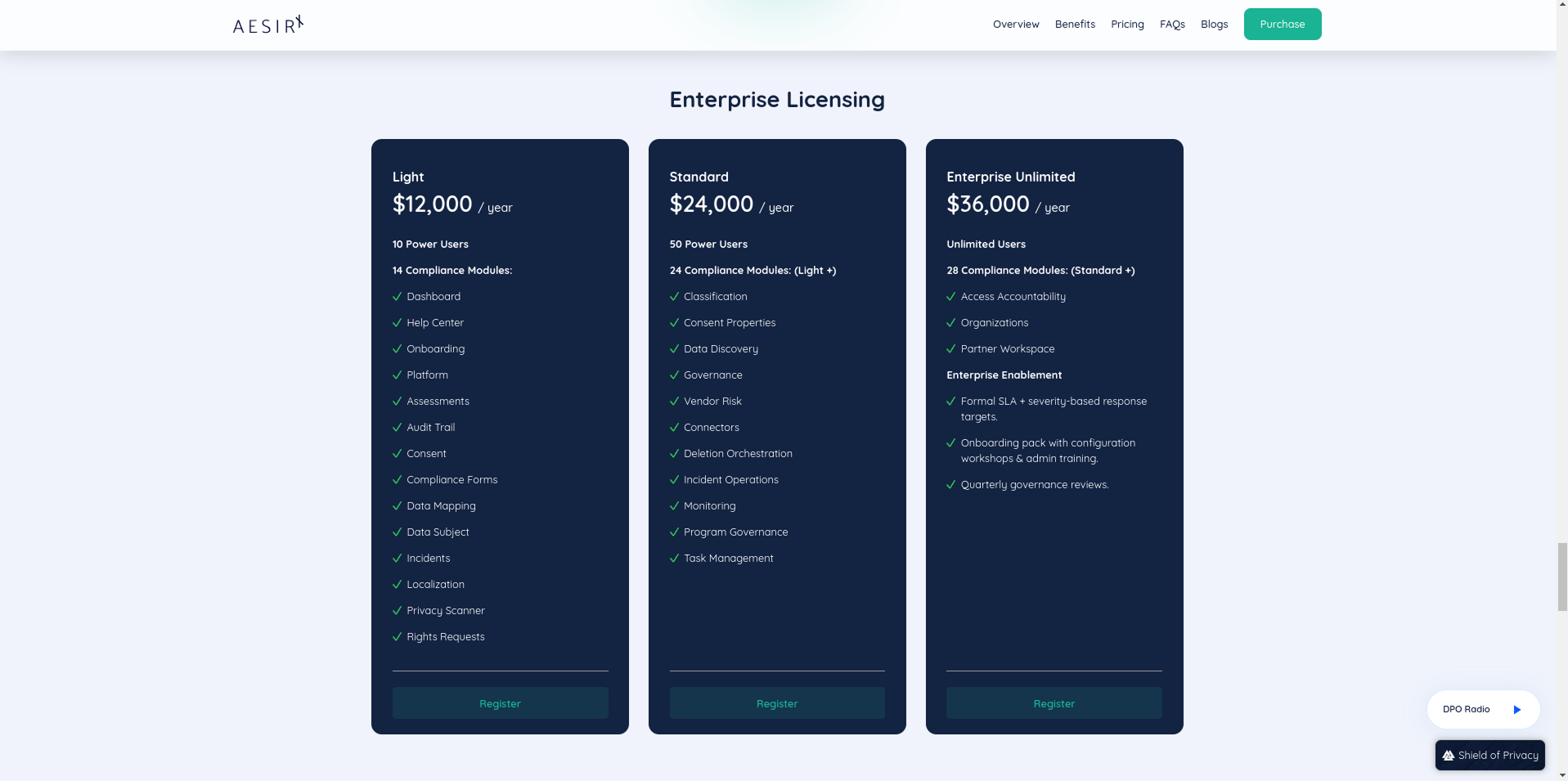
- Log in and access the Licenses page. If you register a new account, you will receive an email to finalize and gain full access to your account.
- Obtain your License Key for ComplianceOne.
- Click Update Domains and add the domain where you are hosting ComplianceOne.
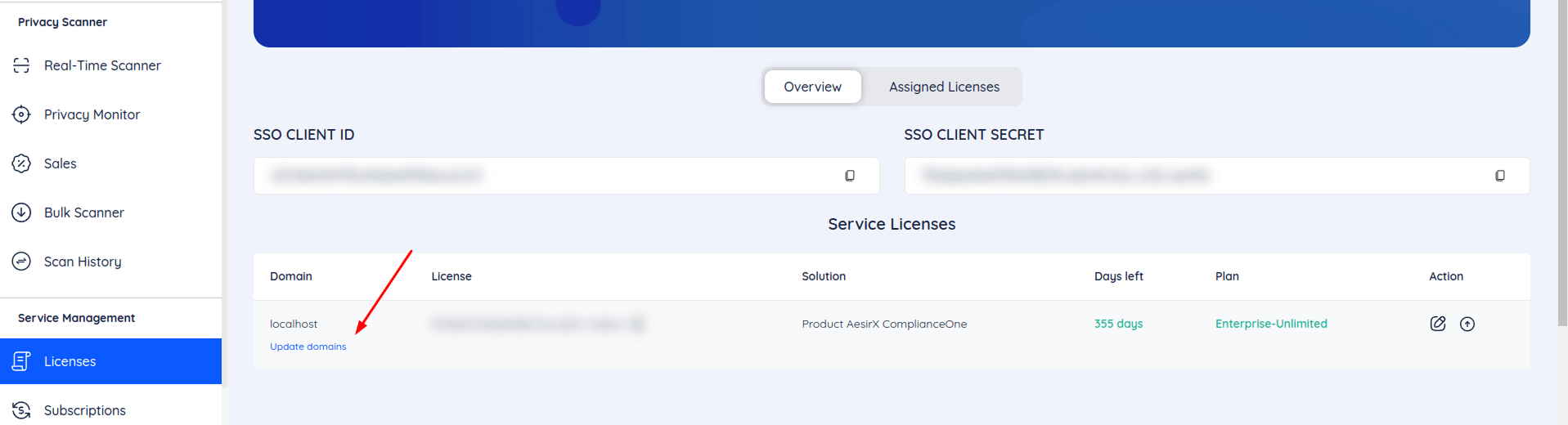
Step 2: Install and Deploy
1. Download the Distribution Package
Download the tier-specific Distribution Package from the link provided with your purchase. Distribution Packages are named by tier and version, for example:
- aesirx-complianceone-light-1.0.0.tar.gz
- aesirx-complianceone-standard-1.0.0.tar.gz
- aesirx-complianceone-enterprise-1.0.0.tar.gz
2. Extract the Distribution Package


tar xzf aesirx-complianceone-standard-1.0.0.tar.gzcd aesirx-complianceone-standard-1.0.03. Configure Environment Variables
cp .env.example .envOpen .env in your editor and set the following required variables:
APP_URL: The frontend application URL
MONGODB_URI: MongoDB connection string
MONGO_ROOT_USERNAME: Root User of mongodb
MONGO_ROOT_PASSWORD: Root password of mongodb
SESSION_SECRET: Secret key for signing session cookies
- Generate with:
node -e "console.log(require('crypto').randomBytes(64).toString('hex'))"ENCRYPTION_KEY: AES-256 encryption key (32 hex characters)
- Generate with:
node -e "console.log(require('crypto').randomBytes(32).toString('hex'))"VAULT_MASTER_KEY: Master key for connector credential encryption
- Generate with:
node -e "console.log(require('crypto').randomBytes(32).toString('hex'))"CORS_ORIGINS: The frontend application URL to pass the CORS
EMAIL PROVIDER:
- EMAIL_PROVIDER
- SMTP_HOST
- SMTP_PORT
- SMTP_USER
- SMTP_PASS
- EMAIL_FROM
4. Start the Stack
Run command and wait 1-2 minutes for all containers to initialize and pass their health checks
docker-compose up -d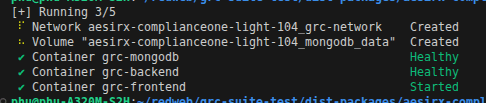
5. Access Your Frontend URL and Continue
Step 3: Setup Wizard
The Setup Wizard runs automatically the first time you access a distribution package deployment. It walks you through 7 steps:
1. License Activation
Enter the license key in Step 1. This determines which modules and features are enabled for your tier.
2. Organization Setup
Fill in the form to create your organization and Administrator account, which you will use to log in after completing the Setup Wizard.
3. Select Modules
Select the modules to be activated for ComplianceOne.
4. Notification
Configure how you receive notifications for compliance events.
5. Review and Confirm
Review your configuration and complete the setup.
Then you can log in with the administrator account that was created and start using ComplianceOne.
Final Tip
Want guidance on how ComplianceOne fits your organization and regulatory obligations?